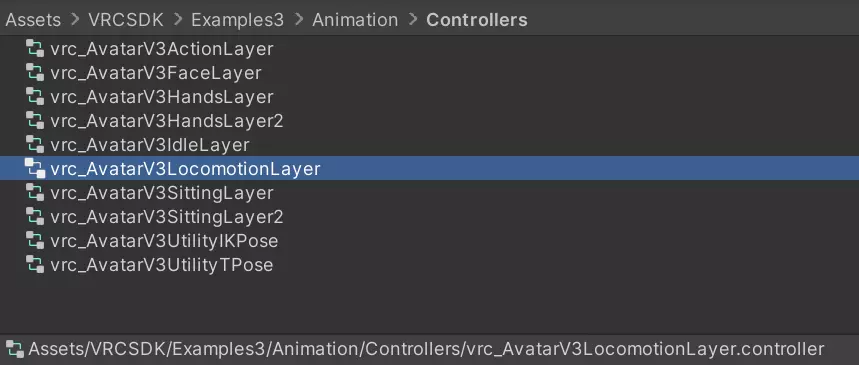
VRChat provides a default locomotion controller that tells Unity how your avatar moves when you move in-game. It is located under Assets/VRCSDK/Examples3/Animation/Controllers/vrc_AvatarV3LocomotionLayer.controller
Step 1: Find the Locomotion Controller
- Navigate to Assets/VRCSDK/Examples3/Animation/Controllers/vrc_AvatarV3LocomotionLayer.controller in your Unity setup.
Step 2: Copy the Controller
- Copy the default locomotion controller provided by VRChat.
Step 3: Place the Copied Controller
- Put the copied file in a new location to preserve the original file.
Step 4: Open the Controller
- Open the copied file in the Animator panel in Unity.
- Open Controller
Preview:
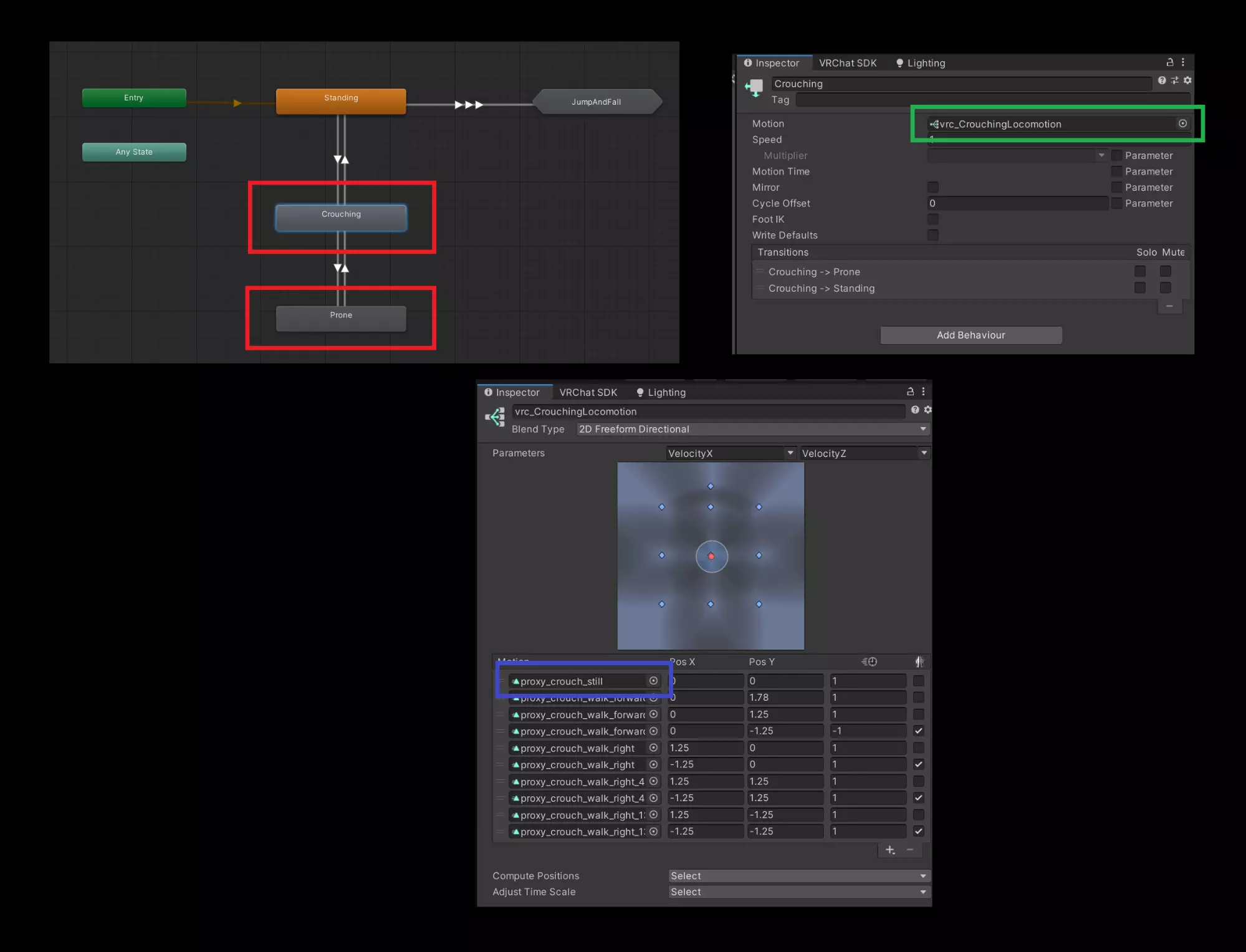
Step 5: Find the States
- Look for the "Prone" or "Crouching" states in the Animator panel.
Step 6: Open the Motion
- Double-click on the motion in the "Prone" or "Crouching" states.
Step 7: Replace the Animation
- In the first entry of the motion details, replace the current animation with your custom one.
- Replace Animation
Preview:
Step 8: Upload Your Avatar
- After saving your changes, upload your avatar to VRChat.
Step 9: Test the Animation
- In VRChat, go into a prone or crouch position with your avatar to see if your custom animation plays.